June 2025
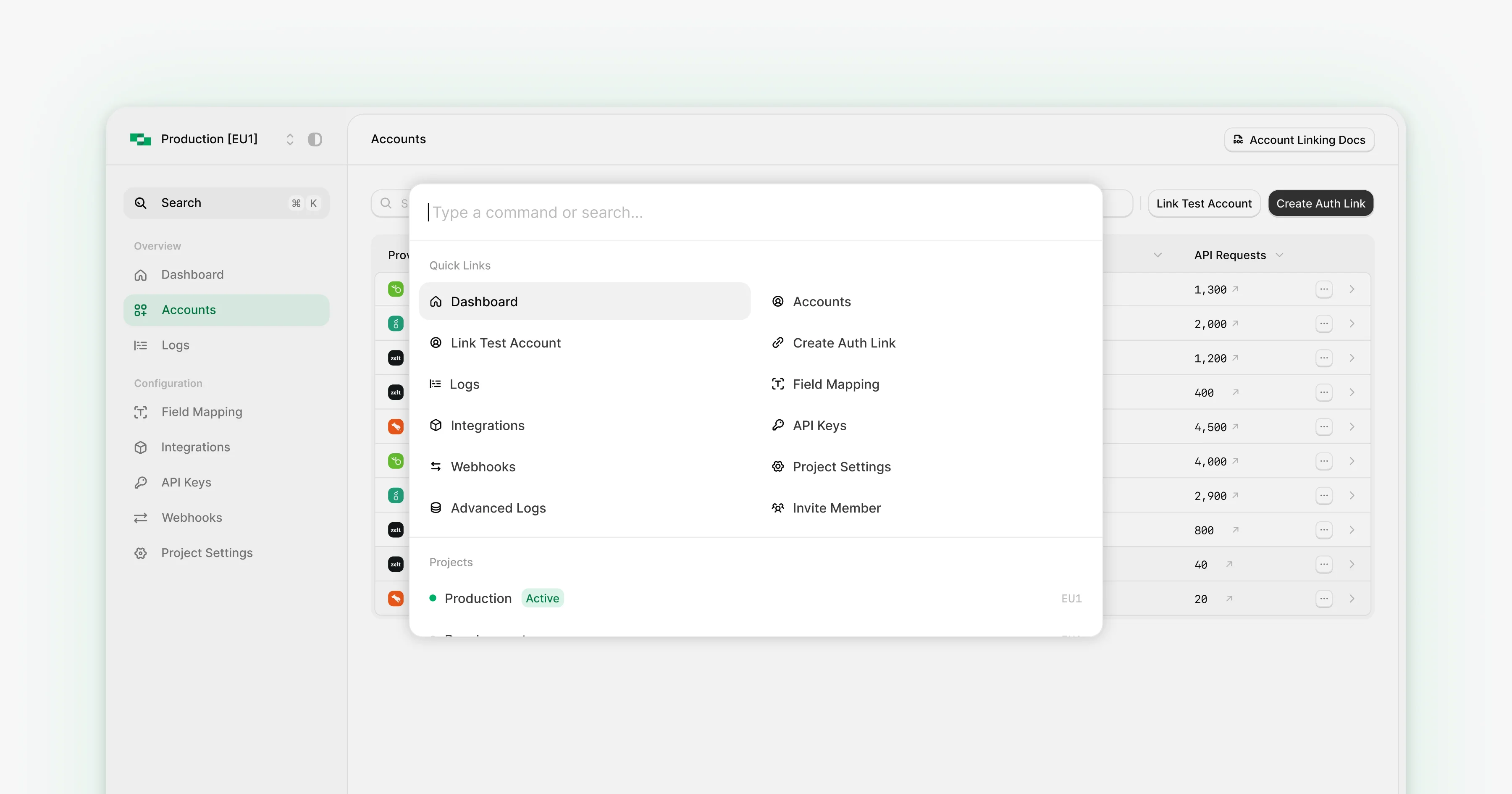
Command Palette Is Here
Developer experience is a fundamental pillar of any high-quality product. The less manual effort required, the more mental space we have to focus on solving complex problems.
Many of us already customize our workflows with keybindings or Vim modes. Inspired by that philosophy, we’re introducing the new StackOne Command Menu.
Now you can hit Cmd + K on Mac or Ctrl + K on Windows to open the command palette from anywhere in the app - giving you fast access to everything you need.
Key Capabilities
Quick Navigation & Search
- Open the palette from anywhere with Cmd/Ctrl + K
- Close it instantly with Escape
- Smart filtering that’s case-insensitive and supports multi-field queries
Multiple Content Sections
- Quick Links: Perform common actions like inviting teammates, or creating API keys
- Projects: Instantly switch between projects, with status indicators for Active and Inactive ones
- Accounts: Search accounts by provider name, owner name, or account ID
- Integrations: Navigate to and enable any integration
Smart Filtering
- Every section supports real-time filtering based on your input
- Search terms can match multiple fields (e.g., typing a name or ID will return relevant accounts)
- No need to remember exact terms - fuzzy matching takes care of the rest
Project Management
- View all available projects
- Instantly switch between projects
- See the region and status (active/inactive) for each one
Faster Access to Integrations
- Jump into the settings of specific integration with fewer clicks
- Start typing the name of the integration and it will show up as a search result.
Account Details
- View provider info, owner names, and account IDs while searching
- Easily navigate to a specific account or take action
Support Tools in the Footer
- Direct access to StackOne Docs
- Open the Support Hub
- Jump to help resources with a single click
The command palette is permission-aware, context-smart, and designed to save time. Whether you’re looking for a project, managing accounts, or jumping to a specific integration - Cmd/Ctrl + K has you covered.